What it is
A national plan starts from what the service has now. Site Profiles keeps that record. The people who run each facility keep its profile up to date, and the dashboards add the profiles up by district, region and country.
Facilities and machines
Each facility lists its machines one by one, with model and weekly schedule. The modalities are CT, MRI, ultrasound, X-ray, fluoroscopy, mammography, nuclear medicine, interventional, hybrid theatre, point-of-care ultrasound (POCUS) and DEXA.
Staffing and contacts
Actual FTE and headcount by staff type, from MITs and sonographers to radiologists, trainees and fellows, with the management and clinical contacts for each site.
Who uses the data
Workforce Sizing reads each facility's staffing from Site Profiles as its workforce baseline. My HNZ Radiology reads the facility list for its pages about sites.
As of November 2026 the register holds 55 facilities in 19 districts across the four regions, with 776 machines.
Site Profiles holds sites and their staffing figures. The register of radiologists, MRTs and other network members, and the announcements sent to them, are in My HNZ Radiology.
How the data is organised
Facilities sit in a geographic hierarchy, each has an archetype for its size, and some are satellites of a larger hospital.
The hierarchy
Every facility belongs to a district, and every district to one of the four health regions.
Workforce Sizing groups facilities into its own planning units, called grains. Grains belong to Workforce Sizing and are not stored in Site Profiles.
Archetypes
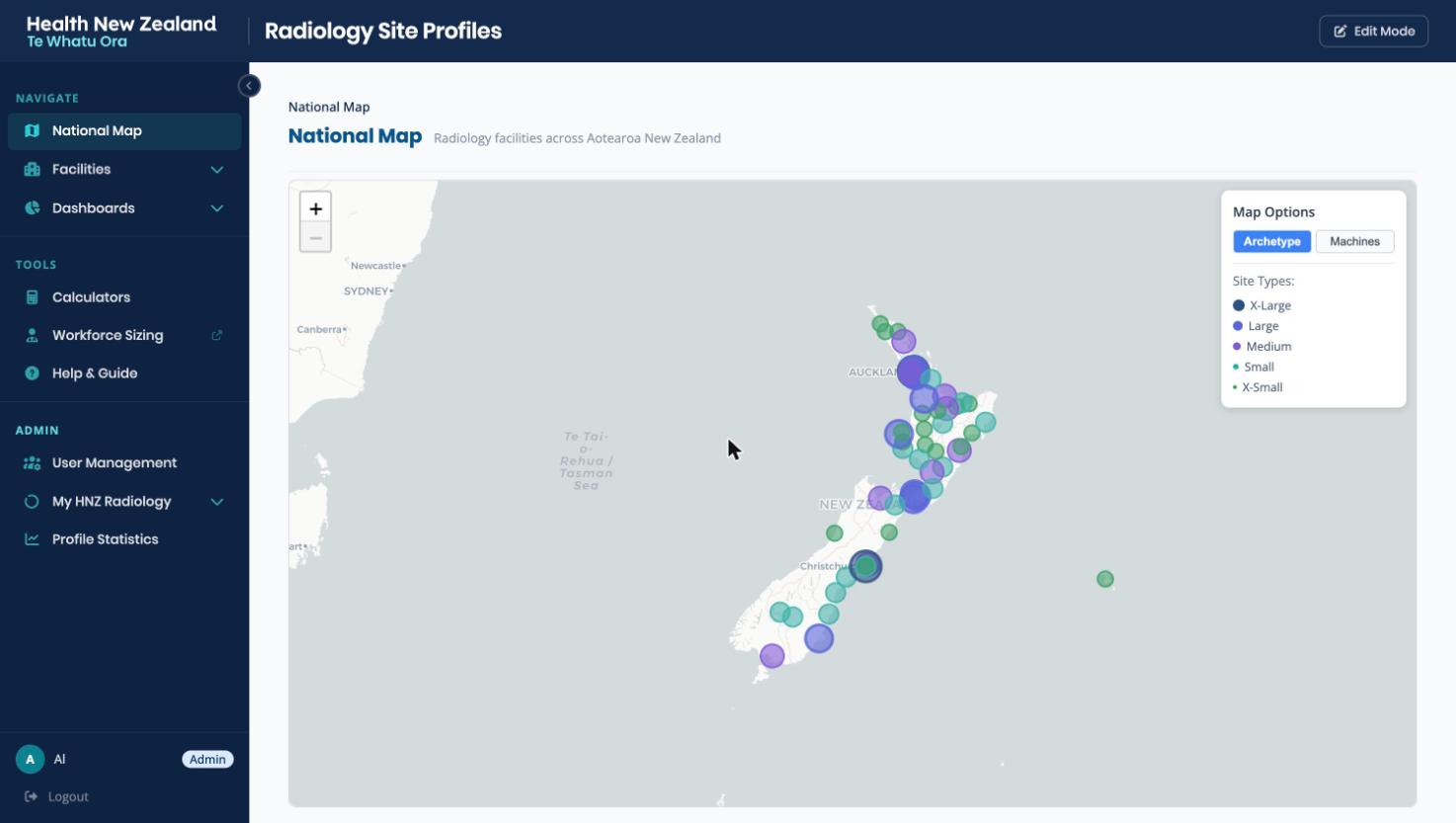
Each facility is classed by size, from XL (the largest tertiary hospitals) to XS (small rural sites). The map uses the archetype for its markers, and Workforce Sizing uses the same five classes to pick default activities and meetings.
Satellite sites
A smaller facility that shares staff with a parent hospital is marked as its satellite. The satellite shows the parent's staffing, read-only, so staff who work across both sites are counted once.
Specialty services
A profile also records which specialty services the facility runs now. These show as tags on the facility lists and the profile.
The screens
The app has national views, a profile for each facility, dashboards and a few tools.
National Map
Every facility on a map of Aotearoa. The Archetype view sizes and colours each marker by archetype; the Machines view shows machine counts instead. Clicking a marker opens that facility's profile.
Facility lists
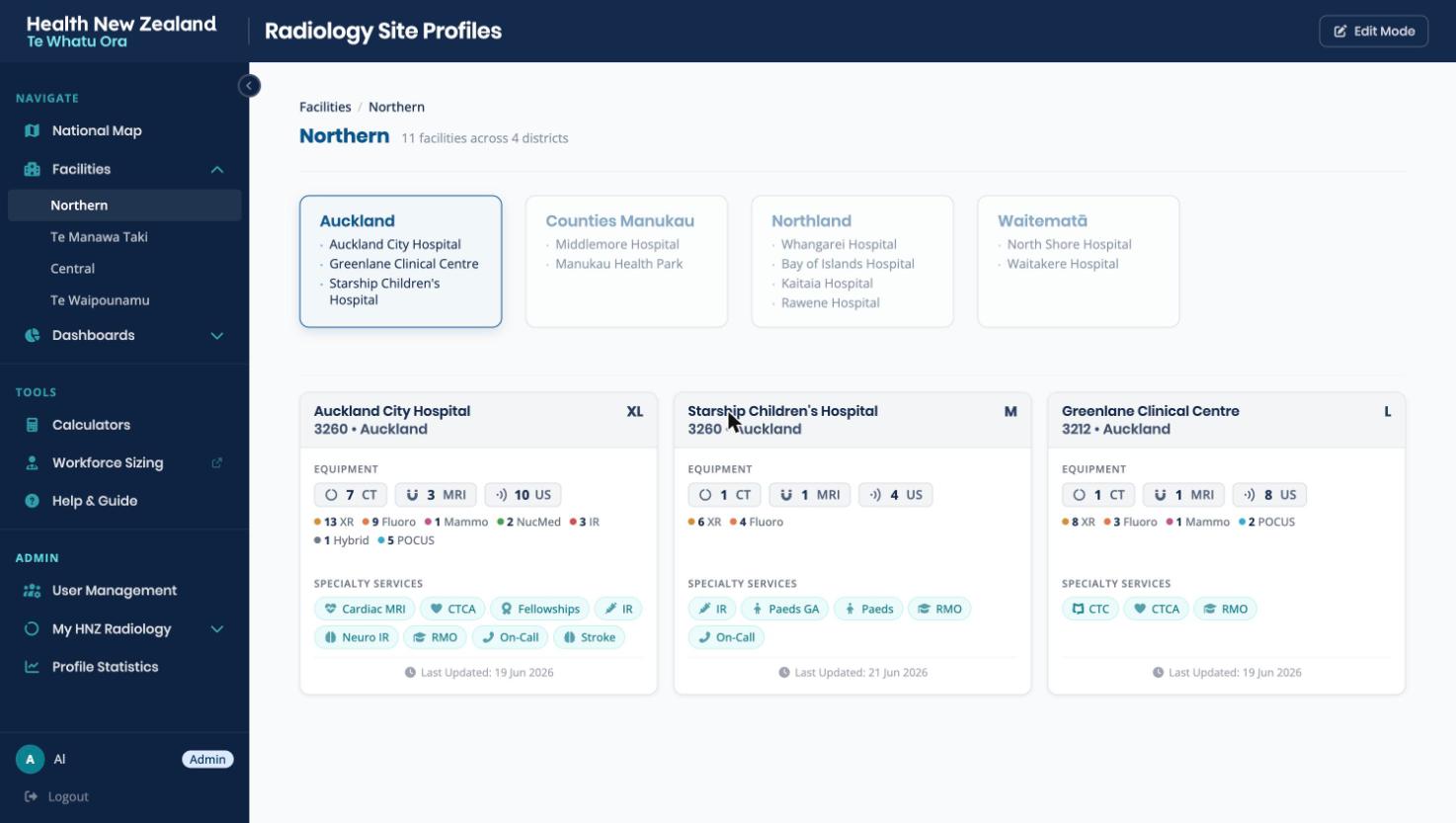
Each region has a list of its facilities, grouped by district. A facility's card shows its machine counts by modality, its specialty service tags and when it was last updated.
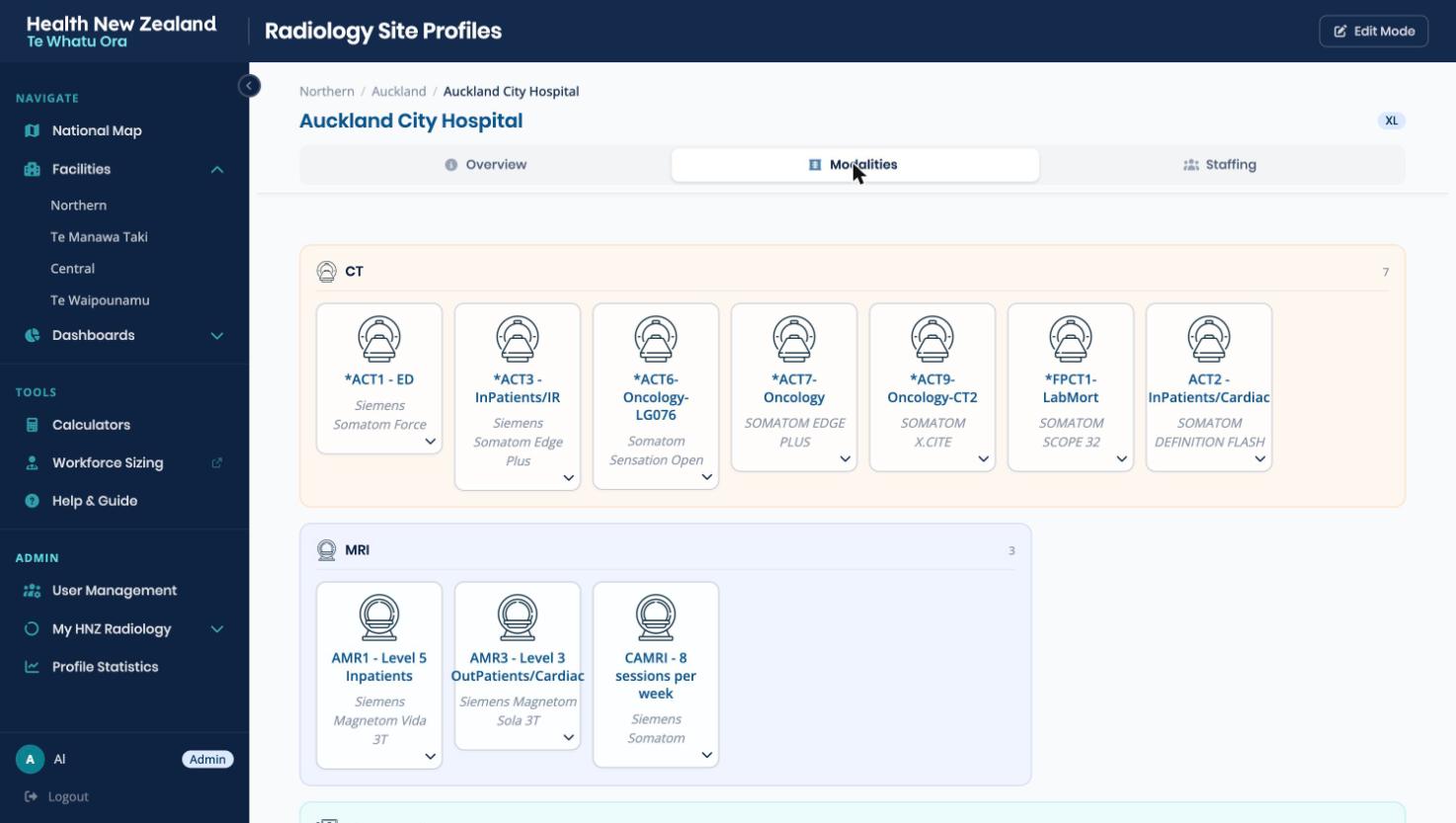
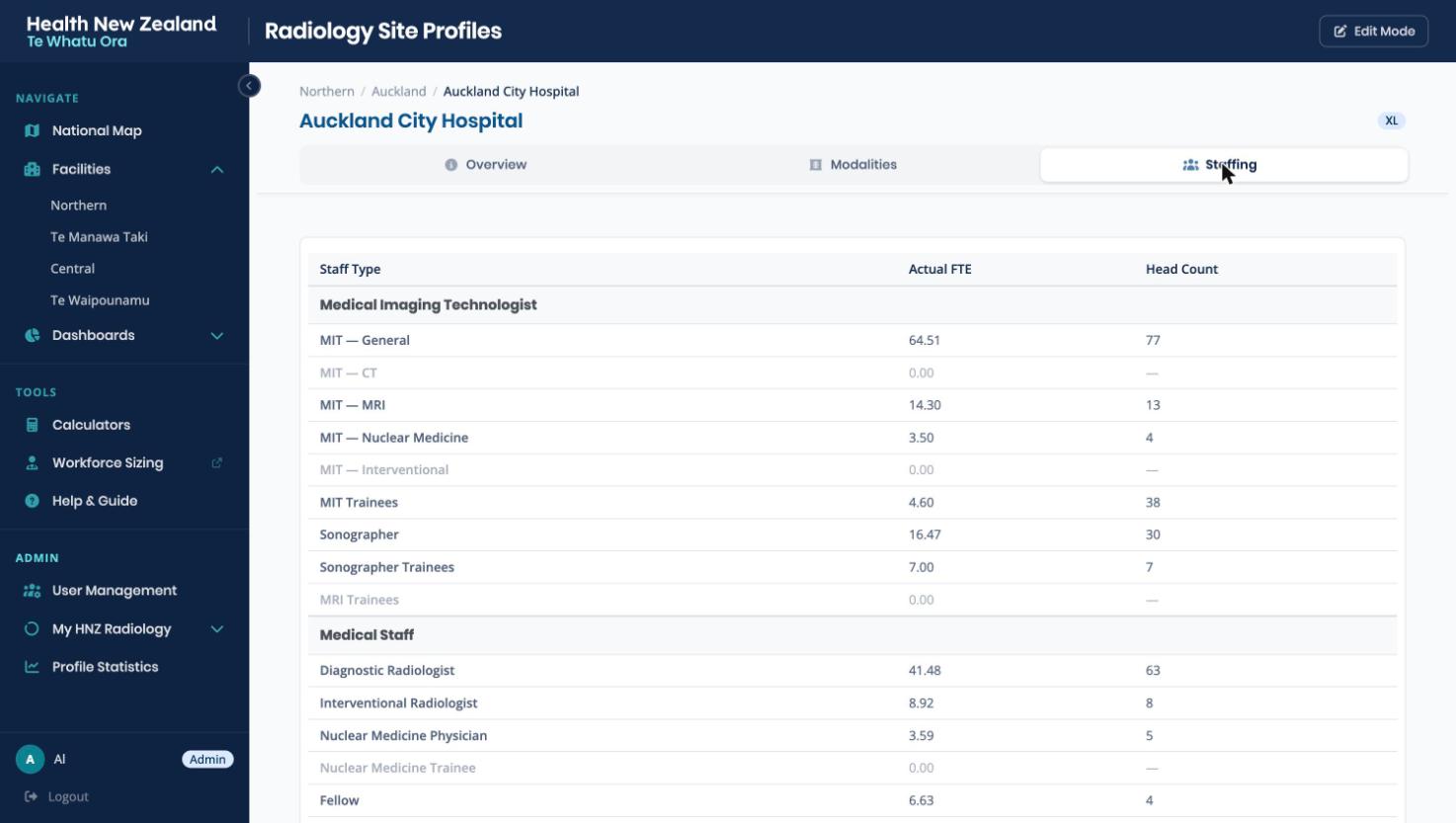
A facility's profile has three tabs: Overview, Modalities and Staffing.
Overview
The facility's site code, district and region, archetype, address and phone number, and its specialty services. Below them are the management and clinical contacts, such as the clinical manager, the IR team leader and the MIT lead for each modality. A satellite's parent facility is set here.
Modalities
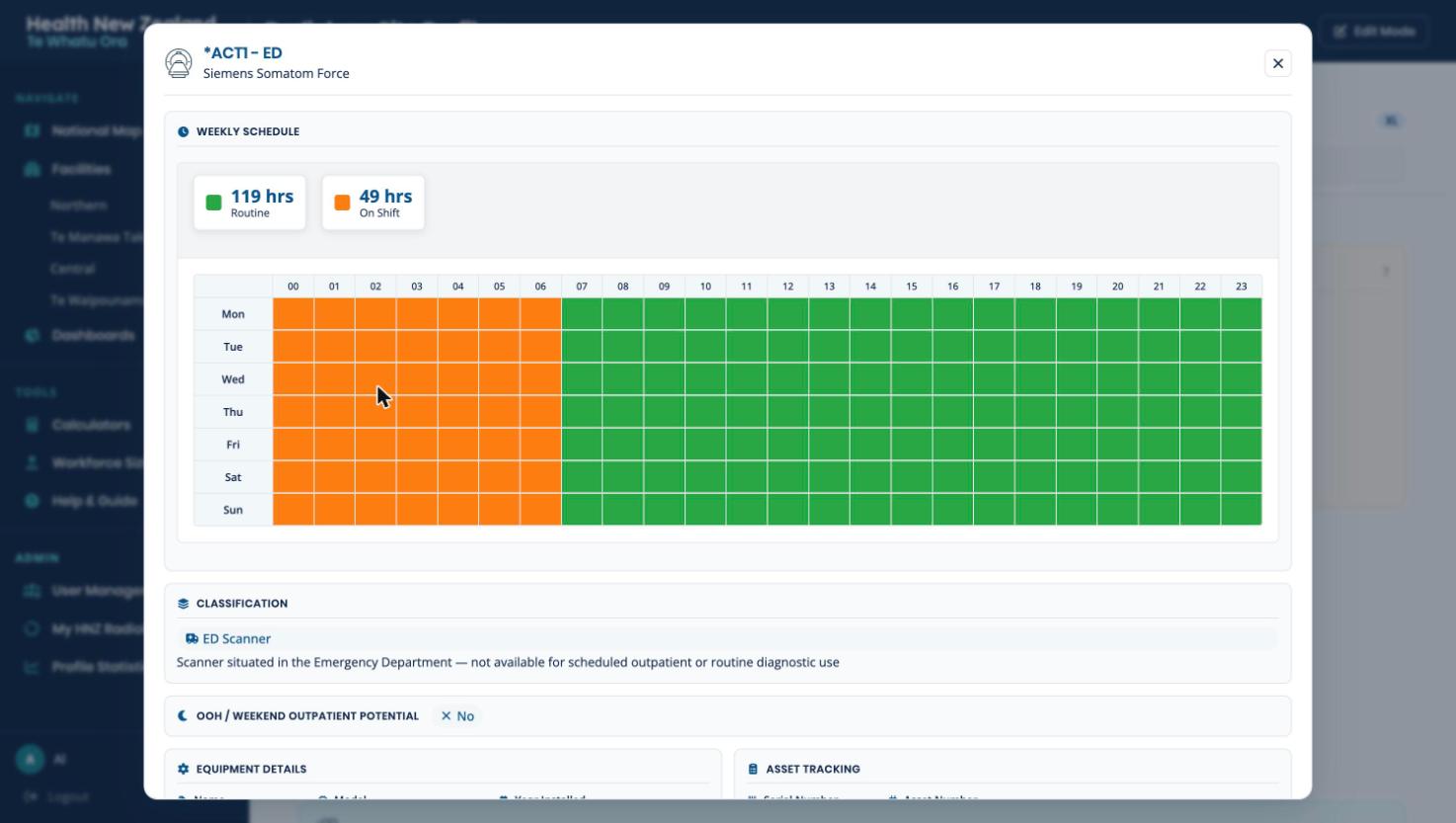
The facility's machines, grouped by modality. Each machine opens to its classification, equipment details, asset tracking and weekly schedule.
Staffing
Actual FTE and headcount for each staff type: MITs by modality, MIT and sonographer trainees, sonographers, then medical staff such as diagnostic and interventional radiologists, nuclear medicine physicians and fellows.
- Numbers are the staff in post, not the budgeted establishment.
- A satellite shows its parent's staffing, read-only.
- Workforce Sizing takes these figures as its workforce baseline.
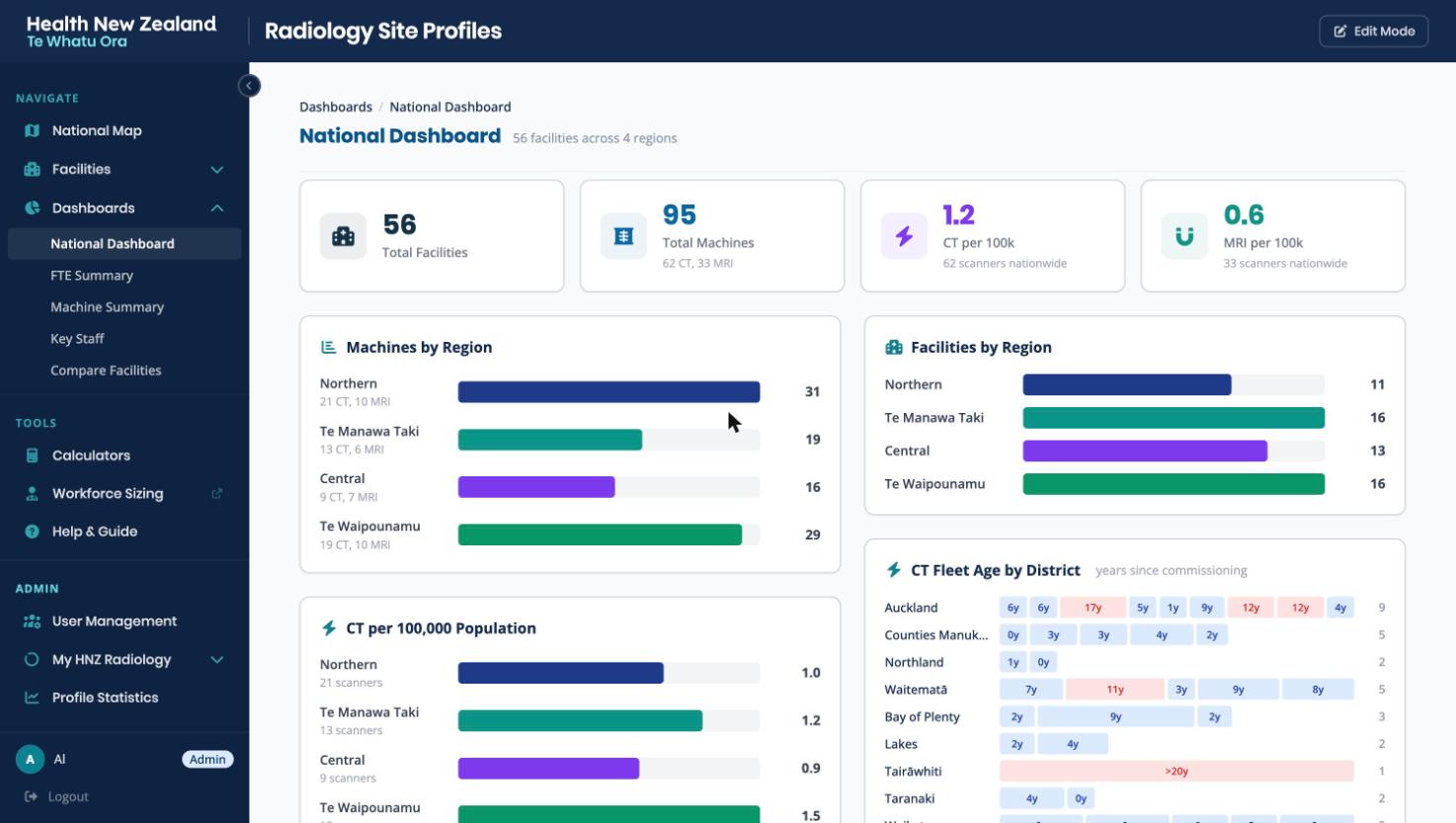
National Dashboard
The register added up: machines and facilities by region; CT, MRI, diagnostic radiologist FTE and sonographer FTE per 100,000 population; CT and MRI fleet age by district; and out-of-hours CT coverage. Older scanners stand out in the fleet age charts, which helps with replacement planning.
FTE Summary
Staffing totals by region and district, opening down to each facility, with population alongside. It exports to Excel.
Machine Summary
Every machine in the country in one list, with flags such as ED, inpatient only, radiation oncology and non-diagnostic, and a scope by archetype or district.
Key Staff
The management and clinical contacts from every profile, gathered by region.
Compare Facilities
Up to four facilities side by side: equipment, staffing and services in matching columns.
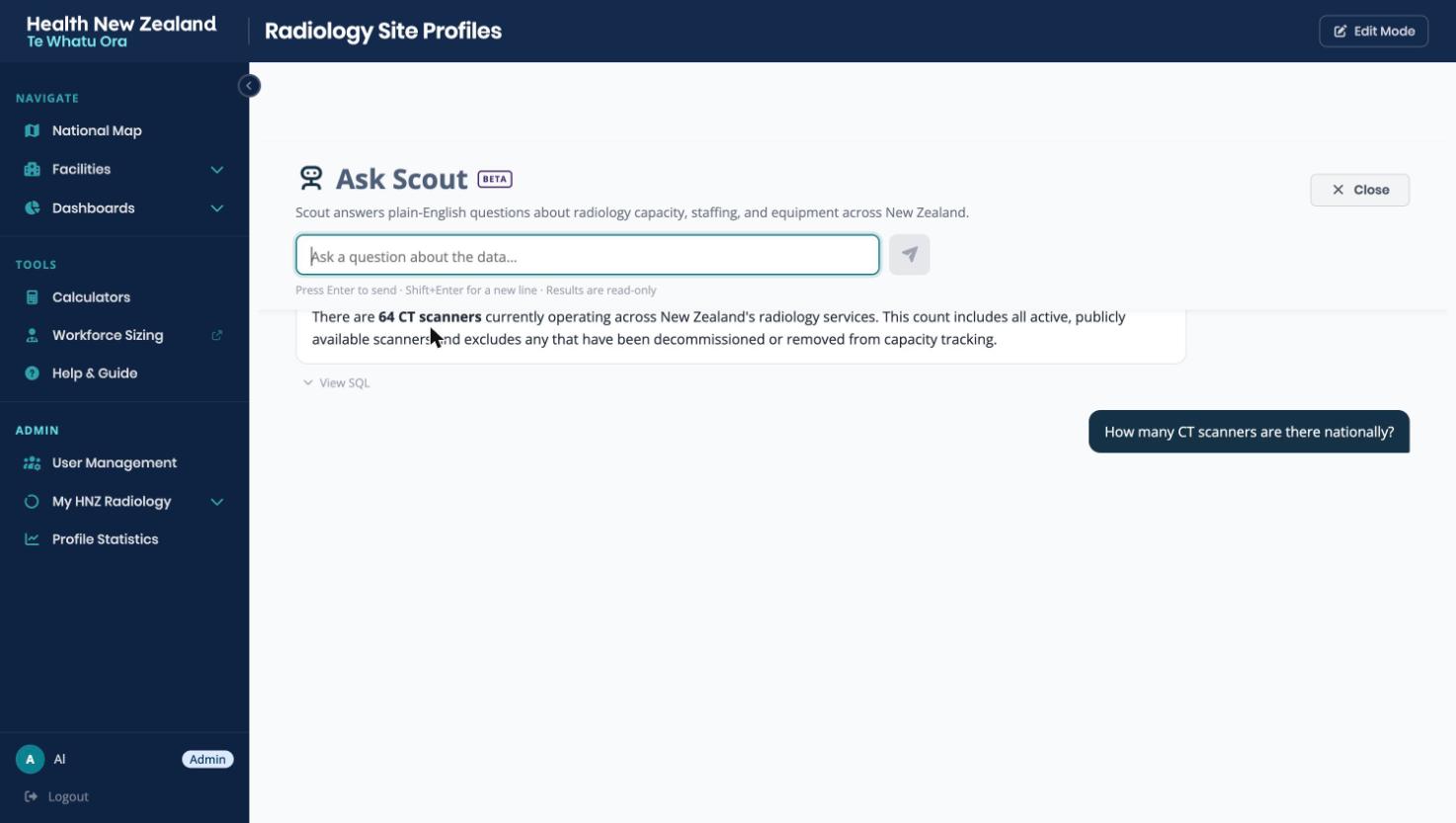
Ask Scout
Scout answers questions about the register in plain English, such as "how many CT scanners are there nationally?". It turns the question into a database query, runs it and writes the answer.
- Scout only reads. It runs SELECT queries and cannot change a profile.
- View SQL under each answer shows the query it ran.
- When a question could mean more than one thing, Scout asks which, with options to click.
Calculators
The Radiology Waitlist Recovery Calculator (beta) plans extra weekday and weekend lists, and works out the cost, case mix and a week-by-week schedule.
Edit Mode
An editor turns on Edit Mode from the header to change a profile. Each tab has Save and Cancel, and nothing is stored until Save. Every saved change is recorded in the audit log under the editor's name.
Keeping profiles current
A profile is only useful while it is up to date, so the app tracks when each part of it was last checked.
Marking a section reviewed
The Overview, Machines and Staffing sections each show when they were last reviewed. An editor for the region can mark a section as checked and current in one click, after a confirmation, without opening Edit Mode. Saving an edit counts as a review too.
Up to date, due, overdue
A section is up to date for 60 days, due for review from 60 to 90 days, and overdue after that. A facility is as current as its oldest section. Profile Statistics shows this for every facility, and each week regional leads get an email about profiles going out of date.
Who can do what
Everyone signs in through the HNZ Rad Tools sign-in, which gives each person a level in Site Profiles: Viewer, Editor or Admin. An editor can change facilities only in the regions they have been given.
| Capability | Viewer | Editor | Admin |
|---|---|---|---|
| Browse the map, profiles and dashboards | Yes | Yes | Yes |
| Ask Scout and the calculators | Yes | Yes | Yes |
| Profile Statistics, for their regions | Yes | Yes | Yes |
| Edit profiles and mark sections reviewed | No | Yes | Yes |
| Exports (CSV) | No | No | Yes |
Exports are CSV downloads of the facility list, contacts, machine inventory, replacement schedule, staffing FTE, profile freshness and the audit log. They include contact details, so they stay with admins. People and their levels are managed in the sign-in hub's admin pages, not in Site Profiles.
Where to find it
Site Profiles is at site-profiles.hnzradtools.nz. Every page needs a sign-in, and access is by request: ask an HNZ Rad Tools administrator, who sets the level and regions.
How it is built is in the architecture pack (Health NZ staff sign-in).