What it is
A referral should get the same priority in Invercargill as in Whangārei. The Triage Tool puts one set of criteria in front of every triager, and the clinical section leads who write the criteria keep it up to date.
The scenario library
As of November 2026, 461 scenarios written by section leads, in 17 clinical areas. Each gives the recommended imaging, a priority and a comment on when the call changes.
Browse and search
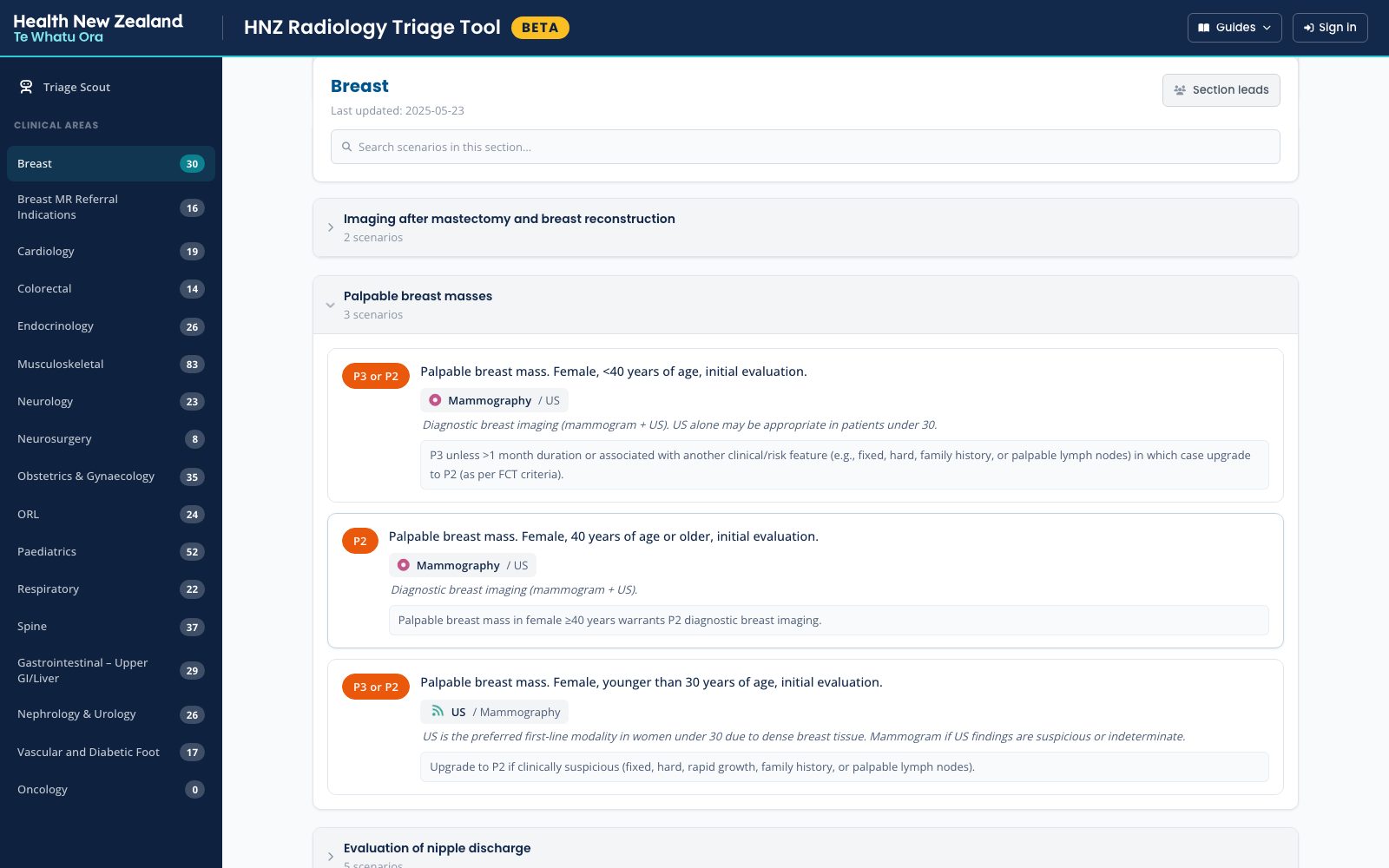
A triager picks a clinical area, opens a subheading and reads its scenarios. A search box filters the scenarios in the section that is open.
The Priority Guide
The National Prioritisation Guide on one page: P and S categories with their turnaround and reporting targets, acute priorities and service disruption levels.
Scenarios and priorities
Section leads write the library and keep it current. Their names, and the date each section was last updated, show at the top of the section.
How the library is organised
A link to a scenario opens the tool at that scenario and highlights it, so a recommendation can be shared in an email or a triage note.
What a scenario says
Priority categories
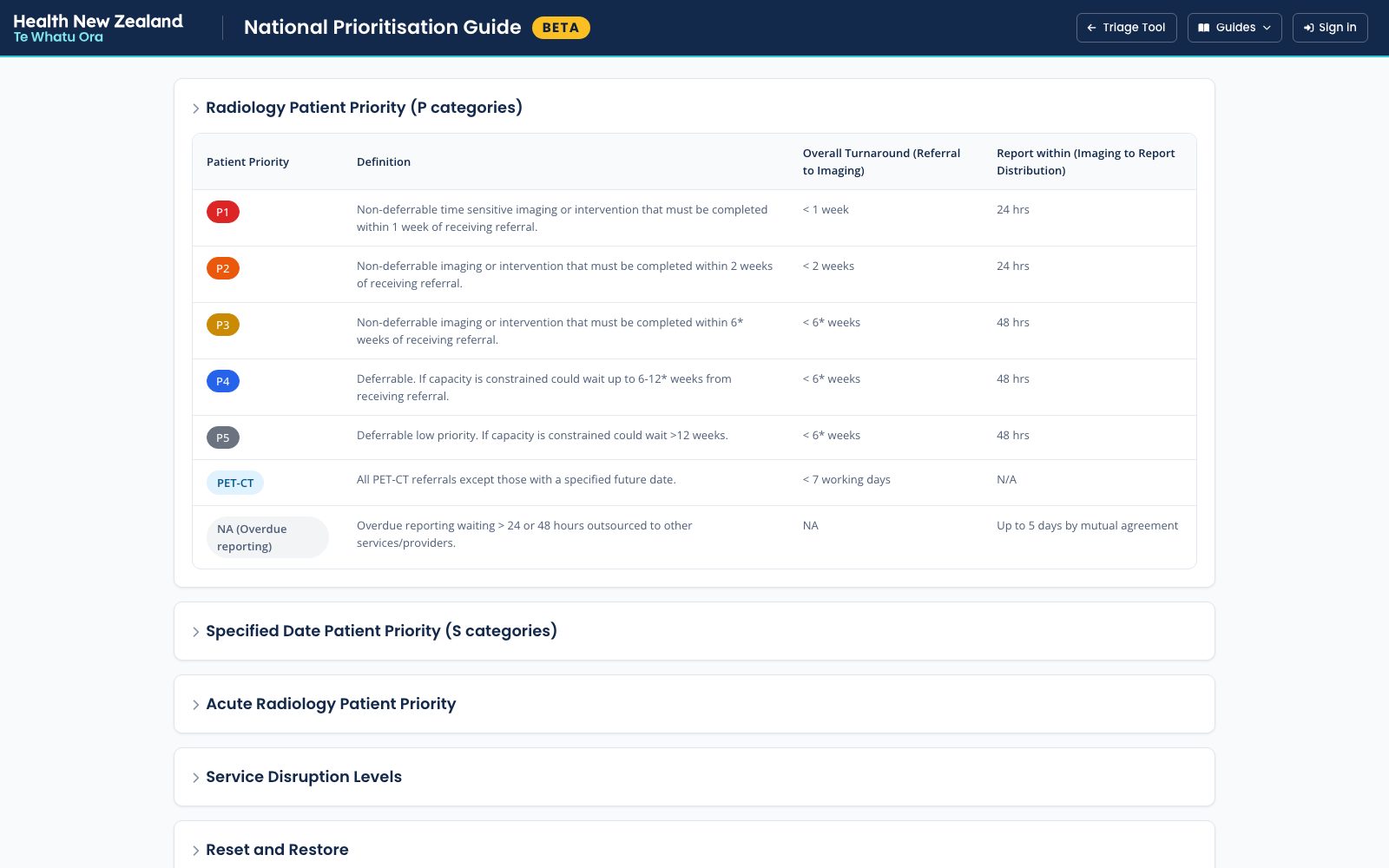
P categories count from the day the referral is received. S categories count from a target date the referrer specifies.
P1 within 1 week, P2 within 2 weeks and P3 within 6* weeks. If capacity is constrained, P4 can wait up to 6 to 12* weeks and P5 more than 12 weeks. Reports are due within 24 hours for P1 and P2, and 48 hours for P3 to P5. The asterisks are the guide's own; its notes are in the Priority Guide.
Finding a scenario
In production, a triager finds a scenario by browsing. On beta, Triage Scout also suggests scenarios from the clinical details of a referral.
Browse
Pick a clinical area from the sidebar, then open the subheading that fits. Production opens on "Select a section" and starts here.
Search within a section
The box at the top of a section filters its scenarios by the words typed.
Triage Scout, on beta
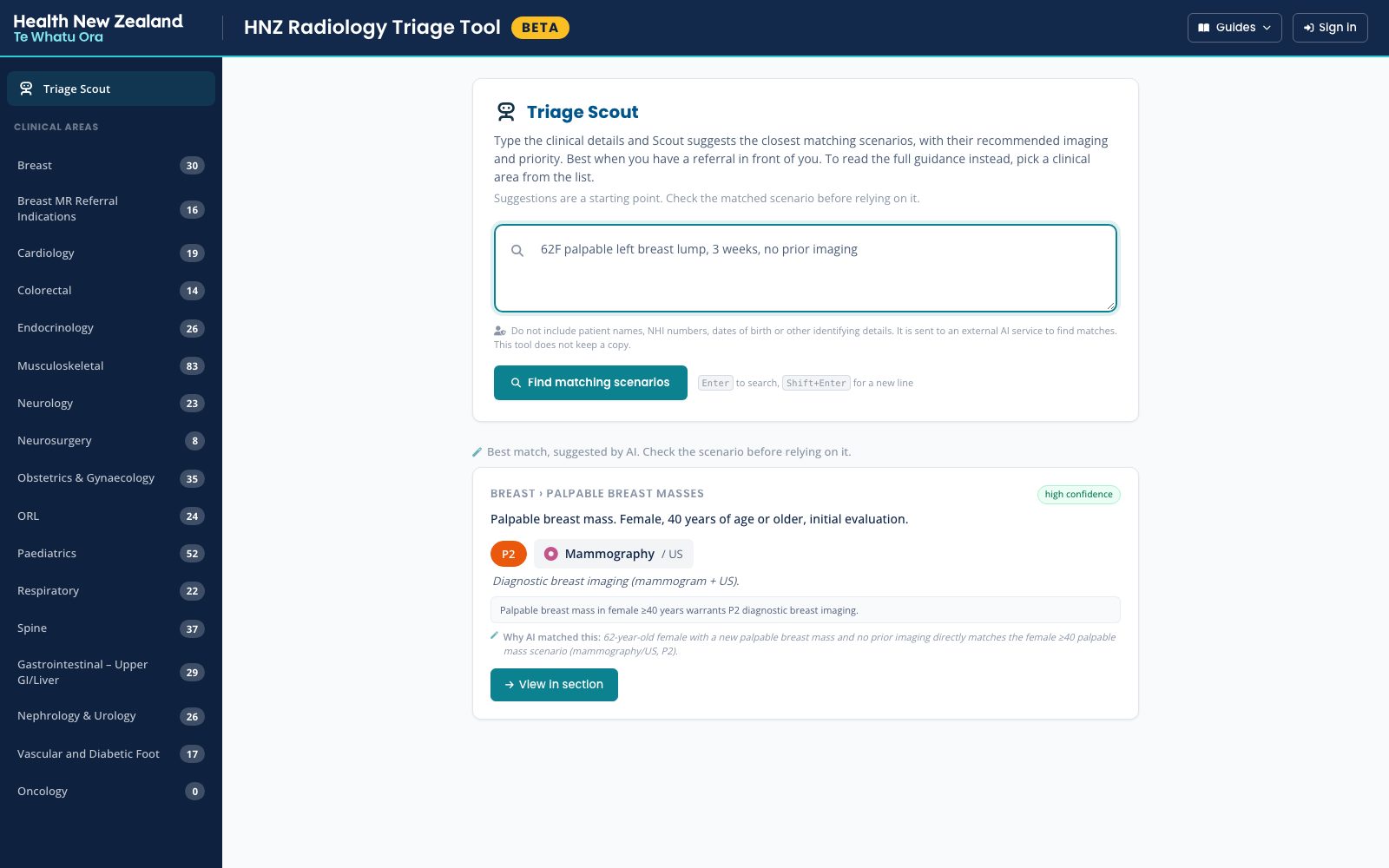
Type or paste the clinical details and Scout suggests the closest scenarios, each with a confidence rating and a sentence on why it matched. Scout gathers likely scenarios from the library, then an AI model ranks them. A query of a single word gets a keyword search instead. If the text uses an abbreviation Scout does not know, it asks what it means before matching.
Features
Everyone can browse and read the Priority Guide. Section leads, editors and reviewers sign in to change the library.
Sections and scenarios
The sidebar lists the clinical areas with a scenario count for each. A section opens with its subheadings closed; opening one shows its scenario cards.
- The top of each section shows when it was last updated, and a Section leads button lists who maintains it.
- A link to a scenario opens the section at that scenario and highlights it.
Priority Guide
The National Prioritisation Guide, opened from Guides in the header. It sets out the P and S categories with their turnaround and reporting targets, PET-CT, the acute priorities from under 30 minutes to under 2 days, the four service disruption levels and what can still be imaged at each, and the reset and restore rules.
Who can change what
Sign-in uses the HNZ Rad Tools sign-in shared with the other tools, with a code sent by email. An administrator gives each person one of three roles.
| Action | Reviewer | Editor | Admin |
|---|---|---|---|
| See AI drafts waiting for review | Yes | Yes | Yes |
| Work the review queue | Yes | Yes | Yes |
| Edit an existing scenario | Yes | Yes | Yes |
| Add, archive or reorder scenarios | No | Yes | Yes |
| Change sections, subheadings and section leads | No | Yes | Yes |
| Send an approved scenario back to review | No | No | Yes |
Edit mode
A signed-in user switches to edit mode with Edit in the header and works on the page itself. Nothing is saved until they click Save and confirm.
- Modality is picked from a standard list (CT, MRI, US, XR, Fluoro, DEXA, PET/CT, Mammography, SPECT, Angiography), never typed.
- Priority is picked with P1 to P5 and S1 to S5 buttons. A pair such as P2/P3 is allowed.
- "HNZ Imaging not indicated" marks a scenario where the right answer is no scan, and clears its modality and priority.
Review queue
Only AI-written content needs sign-off. Review in the sidebar opens a queue that shows one scenario at a time with every field editable. Approving saves any edits first, so an approval covers what was on screen. Rejecting asks for a reason.
- The queue covers AI drafts first, then original scenarios whose comment the AI rewrote. It can be limited to either kind (AI Generated or AI Enhanced).
- If a colleague has already approved or rejected a scenario, the queue treats it as reviewed.
- An administrator can send an approved scenario back to review.
New scenarios from referral data
The hand-written library covers part of what arrives in referral queues. To widen it, a year of real CT and MRI referrals was run through Claude models to propose new scenarios. Readers see none of them until a reviewer approves it.
Classify
Referrals went to the model in batches of 80, CT and MRI mixed, so that the same clinical question asked of both modalities became one scenario. Each scenario was placed under an existing section and subheading. This gave over 7,500 raw scenarios.
Merge and consolidate
Near-duplicates across batches were merged, leaving 5,502. A second, larger model then grouped clinically equivalent scenarios and rewrote them in the library's wording, leaving 2,118.
Sort by evidence
A scenario seen in 3 or more referrals became an AI draft for review. One seen less often went to a review pool that only editors and reviewers can see. The import checked for duplicates once more as scenarios went in.
Review
An AI draft carries an amber "AI Generated" badge. A reviewer approves it in the review queue, after which everyone sees it with a green "AI Generated, Radiologist Approved" badge, or rejects it with a reason. Rejected drafts are archived, not deleted.
Where to find it
The Triage Tool is at triage.hnzradtools.nz. Anyone can browse it and read the Priority Guide without an account. Section leads, editors and reviewers sign in with the HNZ Rad Tools sign-in, and an administrator gives them their role. Triage Scout is on the beta site, beta.triage.hnzradtools.nz, while it is tested.
How it is built is in the architecture pack (Health NZ staff sign-in).